

Hi there! I work as an audio engineer in theater, and I wanted to be able to control lights and lighting cues along with audio. I was really unhappy with the existing options, so I decided to build my own Max for Live devices.
If you are running a show with Ableton / M4L & ETC EOS, these devices might be just as useful for you.
Here is an overview of how they work. All of the devices share these core features:
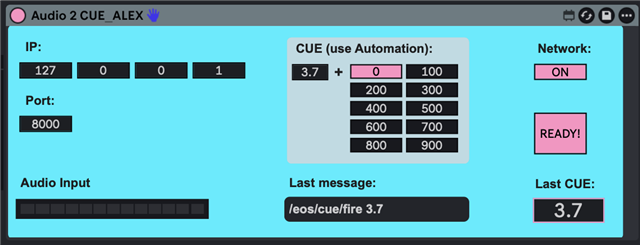
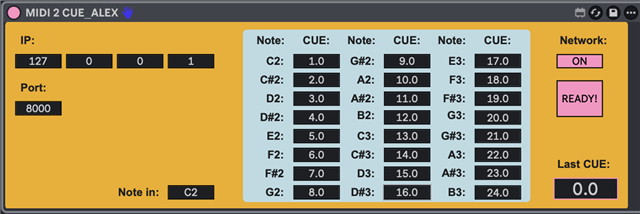
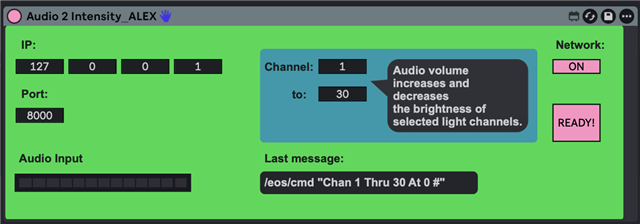
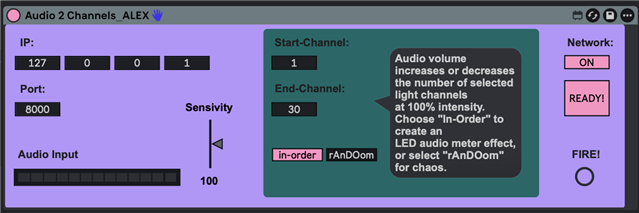
- IP Box: Enter the IP address of your ETC EOS lighting console here (Default: 127.0.0.1 / localhost).
- OSC Port: Enter the network port you are using (Default: 8000).
- Network Switch: Turn the network connection on or off. I recommend turning it off while writing automation to avoid creating chaos on the lighting desk.
- "READY" LED: After loading the plugin into Ableton, it takes 2 seconds for the network connection to initialize. This intentional delay prevents an initial "network bump" from accidentally sending a CUE 0 / Blackout command to the EOS console.
Audio 2 CUE:
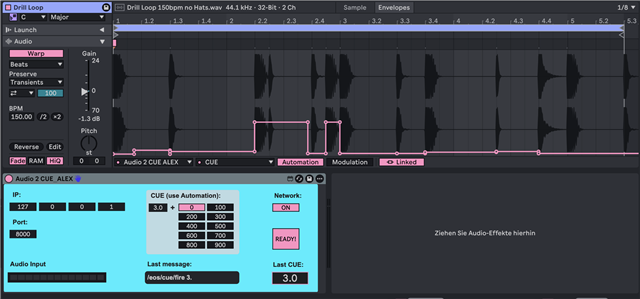
Write automations directly on your audio track to fire light cues.
Audio 2 Channels:
This device uses incoming audio volume to dynamically control the number of active lighting channels at 100% intensity.
It works perfectly with pre-recorded playbacks or live audio (simply route your microphone or audio group to the Ableton track and set the Monitor to "In").
- Modes ("In-Order" vs. "rAnDOom"): Choose "In-Order" to create a classic LED audio VU-meter effect, or select "Random" to unleash absolute chaos.
- Channel Range: Easily define your Start Channel and End Channel. The device will automatically scale and affect all channels within this range.
- Sensitivity Slider: Adjusts how the device analyzes the incoming audio curve, allowing you to fine-tune the responsiveness from soft whispers to heavy transients.
Audio 2 Intensity:
Incoming audio volume increases and decreases the brightness of the selected light channels.
It works perfectly with pre-recorded playbacks or live audio (simply route your microphone or audio group to the Ableton track and set the Monitor to "In").
MIDI 2 CUE:
Trigger lighting cues effortlessly using MIDI data. You can play MIDI notes live via any external MIDI controller or launch MIDI clips directly from Ableton to automate your show.
- Customizable Cues: Easily map MIDI notes to specific cue numbers on your lighting desk.
- Flexible Triggering: Perfect for manual live performance or fully automated, time-accurate playback.
(I’m planning a 5th device, which will be able to control the intensity of lighting subgroups depending on the audio input.)
I created a YouTube playlist to show how these devices work. You'll find the links to the devices in the video descriptions.
https://youtube.com/playlist?list=PLncQeZQtdqQu_dX0nMN55j7fzwRsq9xh9&si=5A28vQo-zFrW5JBx
All you need to get this stuff to work is a computer with Ableton Live and Max4Live, an ETC EOS lighting desk, and a network cable. Some lights might also be useful (don't ask me about light, I'm sound!  ).
).
I really hope this is useful for you and that you have a lot of fun using it!
Alex
I used AI to create this devices.