
Stuck in Custom Direct Select Editor

Hello,

I’m currently learning EOS by following various tutorials, and I believe I’ve successfully reached the editor for creating Custom Direct Selects. I’m starting to understand the overall concept, which is great.

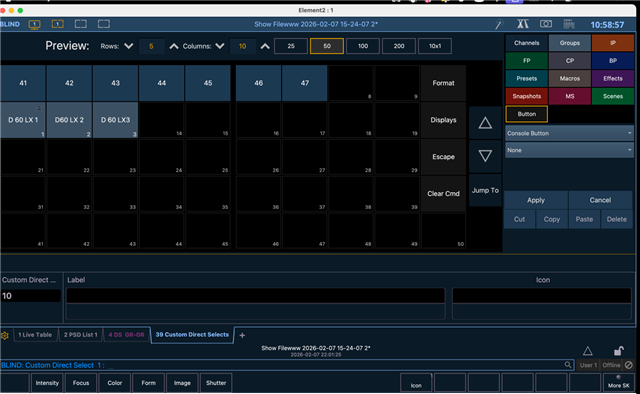
However, at this point, I seem to be stuck inside the editor. I don’t see any obvious way to save, exit the editor, and actually start using the Custom Direct Select table in live operation.

I’ve attached a screenshot showing exactly where I am. From this view, I don’t see a button or command that clearly allows me to leave the editor and return to normal operation with the Direct Selects active.

I’m sure this is something very basic that I’m missing, but I’d really appreciate some guidance on:

  • how to properly exit the Custom Direct Select editor, and

  • how to confirm or apply the changes so the table becomes usable.

Thanks a lot for your help — and apologies if this is a beginner-level question. I’m making steady progress, but this part has me a bit stuck.

Best regards,
Pascal
Parents
  • It looks like you're still in "Blind" editing mode.  Press the Live button (or F1 keyboard shortcut) to return to a live environment to start using what you've edited.  Remember that console state matters in Eos.  Blind mode is a background editing mode, like a stage tech who's working to make changed in the background but won't affect anything that's going out to the stage.  Live mode is where you will control what you see and output.  During a show you can always make changes and edits in Blind mode and Live mode will continue to hold it's current state.

    Cheers!

Reply
  • It looks like you're still in "Blind" editing mode.  Press the Live button (or F1 keyboard shortcut) to return to a live environment to start using what you've edited.  Remember that console state matters in Eos.  Blind mode is a background editing mode, like a stage tech who's working to make changed in the background but won't affect anything that's going out to the stage.  Live mode is where you will control what you see and output.  During a show you can always make changes and edits in Blind mode and Live mode will continue to hold it's current state.

    Cheers!

Children
No Data