
Stuck in Custom Direct Select Editor

Hello,

I’m currently learning EOS by following various tutorials, and I believe I’ve successfully reached the editor for creating Custom Direct Selects. I’m starting to understand the overall concept, which is great.

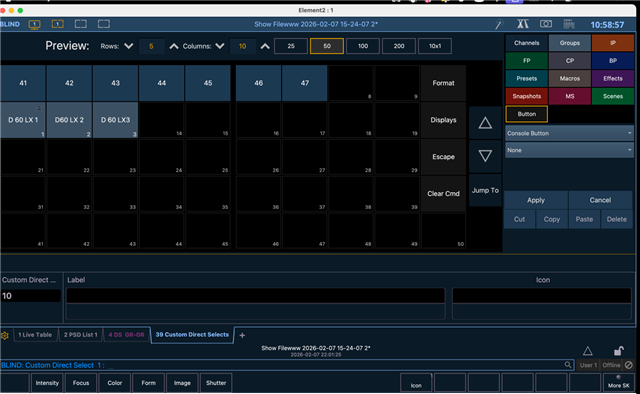
However, at this point, I seem to be stuck inside the editor. I don’t see any obvious way to save, exit the editor, and actually start using the Custom Direct Select table in live operation.

I’ve attached a screenshot showing exactly where I am. From this view, I don’t see a button or command that clearly allows me to leave the editor and return to normal operation with the Direct Selects active.

I’m sure this is something very basic that I’m missing, but I’d really appreciate some guidance on:

  • how to properly exit the Custom Direct Select editor, and

  • how to confirm or apply the changes so the table becomes usable.

Thanks a lot for your help — and apologies if this is a beginner-level question. I’m making steady progress, but this part has me a bit stuck.

Best regards,
Pascal
Parents
  • Hello Scott !!!

    I’m almost 67 years old. Although I’ve been working in lighting for about forty years, I grew up in the analog era. Navigating software of this level of complexity doesn’t always feel natural to me — but I find it genuinely fascinating. I really enjoy it.

    At the same time, I’m experimenting with the Capture visualizer, which works very well with EOS. For several years, I worked with an open-source lighting software called LXConsole, in conjunction with TouchOSC, where controlling the software felt very direct and intuitive.

    Now that I’m starting to work more with LEDs and even moving lights, I felt it was time to make a real step forward and properly learn EOS. I may end up flooding the forum with a lot of beginner questions, and I hope that won’t bother anyone.

    Coming back to my original question: once I’m in Live, I still don’t understand how to recall or display my Custom Direct Select table. I feel like I’m very close, but I’m clearly missing a final step.

    Thanks again for your patience and your help — it’s very much appreciated.

    Pace

  • Happy to assist as time allows!  Once you're back in live mode, you'll want to add new tab using the + button on the right side of all your other open tabs on the bottom of the window.  You'll then choose "Direct Selects" in purple on the right hand side and then choose "Custom" in the direct select type.  Here you'll find all the custom DS pages you created on the "Custom Direct Select" page in blind mode.  If you already have a "Direct Select" tab open but want to switch what it's displaying, use the Groups button on the right side beside the arrows to change this to "Custom".

    Cheers!

Reply
  • Happy to assist as time allows!  Once you're back in live mode, you'll want to add new tab using the + button on the right side of all your other open tabs on the bottom of the window.  You'll then choose "Direct Selects" in purple on the right hand side and then choose "Custom" in the direct select type.  Here you'll find all the custom DS pages you created on the "Custom Direct Select" page in blind mode.  If you already have a "Direct Select" tab open but want to switch what it's displaying, use the Groups button on the right side beside the arrows to change this to "Custom".

    Cheers!

Children
No Data