How do I put a Channel into an Absolute Effect?

ETC Web Site:
    Common Effects and How to Program Them on an Eos Family Console
        Color Effects
            D. Color chases using absolute effects
                d. In live, put channels 1 thru 10 in effect 14. 


If I go to Live, how do I put Channels into the Absolute Effect screen that I just left?

Thanksomuch,
sfb

Parents Reply
  • Hi Stephen. in the Effect editor, you have to select an Action that you want to edit. {Action} is a Softkey (SK1) as indicated by the Curly Brackets. The Command Line should be {Action} [1] [Color Palette] [1]. If your desk doesn't have a [Color Palette] Key, there's a {Color Palette} Softkey which you can get to by pressing More SK and Softkey 2 inside the Effect editor. Just to clarify, there's no "Assign" key. This is indicated by "assign" not being in brackets. 

    Here's a Video directly from ETC, explaining the whole process of building an Absolute Effect with Color Palettes:

    https://www.youtube.com/watch?v=WSKkLnUWIzc

    The eos Family Video learning Series was super helpful when i was just starting out. You can find all videos organized here:

    https://www.etcconnect.com/EosFamilyVideoSeries/

    Hope this helps.

Children
  • Thanks for getting back to me.  Thank you for sending the link to the video.   I've seen the video several times, but I'm never in front of the console when I'm watching it.     I have been able to construct an absolute effect, for a simple color chase, but I can't control it. I have 4 electrics, with 7 LED PARs each.
    E1:41-46,  E2:51-56,   E3:61-66,   E4:71-76.  They should all stay in a blue color.  Then I want a second color, cyan to chase, in a up/down row from SR to SL.  Seven actions, like this:
       41     42     43     44     45     46                        41     42     43     44     45     46
        C       B      B      B       B      B                           B       C      B      B       B      B

       51     52     53     54     55     56                        51     52     53     54     55     56
        C       B      B      B       B      B           then         B       C      B      B       B      B            etc.
       61     62     63     64     65     66                        61     62     63     64     65     66   

        C       B      B      B       B      B                           B       C      B      B       B      B
       71     72     73     74     75     76                        71     72     73     74     75     76 
        C       B      B      B       B      B                           B       C      B      B       B      B

    Normally, I would write this up in seven different cues, and follow and loop them, but I only have the single Cue stack, and I need it to run the main cues.
    Any assistance on how to set this up would be appreciated.

  • Hi Stephen. When you're creating effects, your selection order is really important as to how your effect plays back on stage. What you're talking about here isn't conventionally possible with an absolute effect and a simple selection. There are two ways to get the effect you're looking for. 

    1. Create a StepBased effect with a Color Palette Reference. I will not go into detail about this because, imo, this is the inferior way to do it.

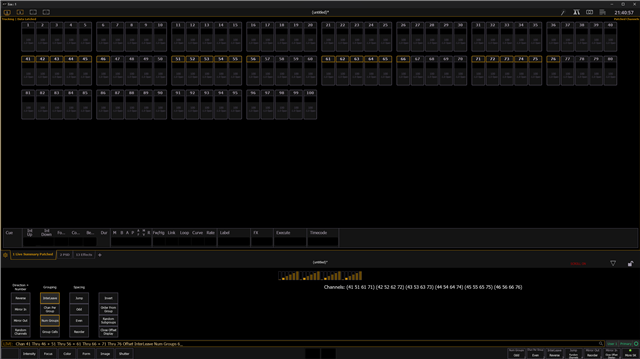
    2. Use an Absolute Effect with an Offset selection using subgroups. Offset is a programming tool (SK5 when "Chan" is on the command line) to create subgroups really fast. Selecting 41-46+51-56+61-66+71-76 Offset InterLeave Num Groups 6 and running the Color Effect over it, should give you the desired effect. It is recommended to store this Offset Selection as a group. This way, you could also run other effects like dimmer chases over this group. Using offset, you can also invert the direction of the selection, or do a "mirror out", "mirror in", or "random" look really fast.

    Sub-Groups: https://www.youtube.com/watch?v=upwVuxZQy4o

    Creating Groups Using Offset: https://www.youtube.com/watch?v=FLJHoHDoA_Y

    Hope this helps. 

Related